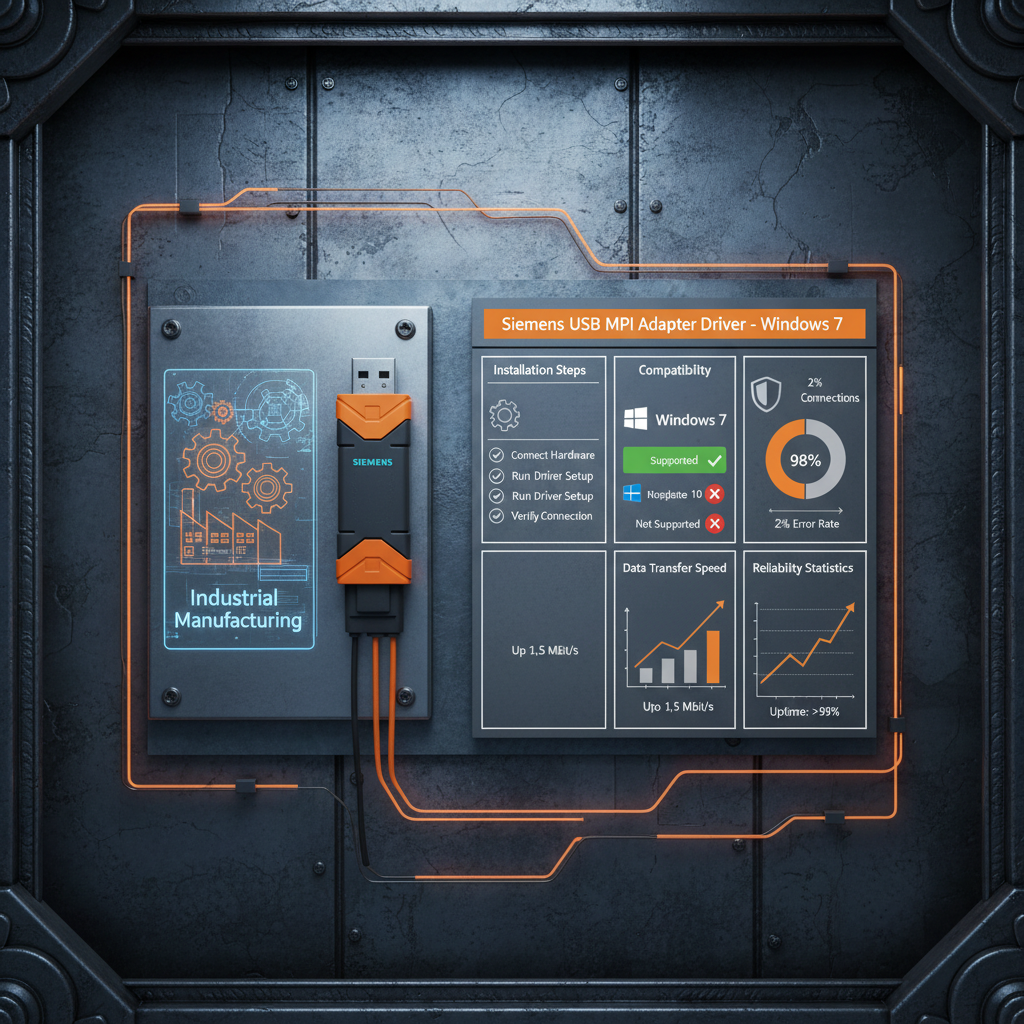
Siemens USB MPI Adapter Driver Windows 7 Installation and Troubleshooting Guide
Siemens USB MPI Adapter Driver Windows 7: A Comprehensive Guide
The Siemens USB MPI adapter is a crucial component for communication between a PC and Siemens PLCs (Programmable Logic Controllers). Successfully installing the correct driver for Windows 7 is often a source of frustration for technicians and engineers. This article provides a detailed guide to ensure a smooth installation process, troubleshoot common issues, and maximize the functionality of your Siemens PLC communication. Proper driver installation is essential for reliable data transfer, programming, and monitoring of your PLC systems.
Understanding the Siemens USB MPI Adapter
The Siemens USB MPI adapter allows for programming, diagnostics, and data monitoring of various Siemens PLCs, including S7-200, S7-300, and S7-400 series. It provides a convenient USB interface, eliminating the need for older serial communication methods. The adapter supports the MPI (Multi-Point Interface) protocol, enabling communication with multiple PLCs on a single network. It is essential to choose the correct adapter compatible with your specific PLC model and software version.
Siemens USB MPI Adapter Driver Installation – Step-by-Step
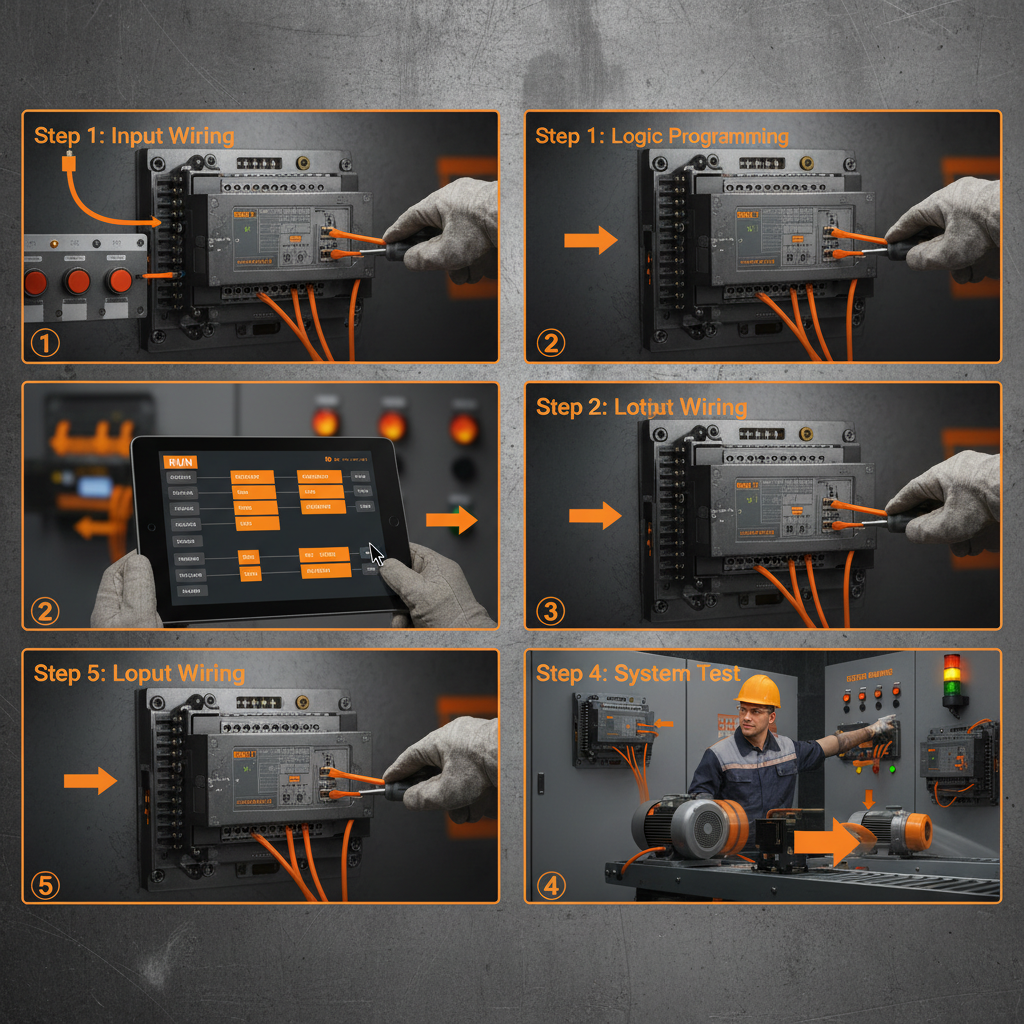
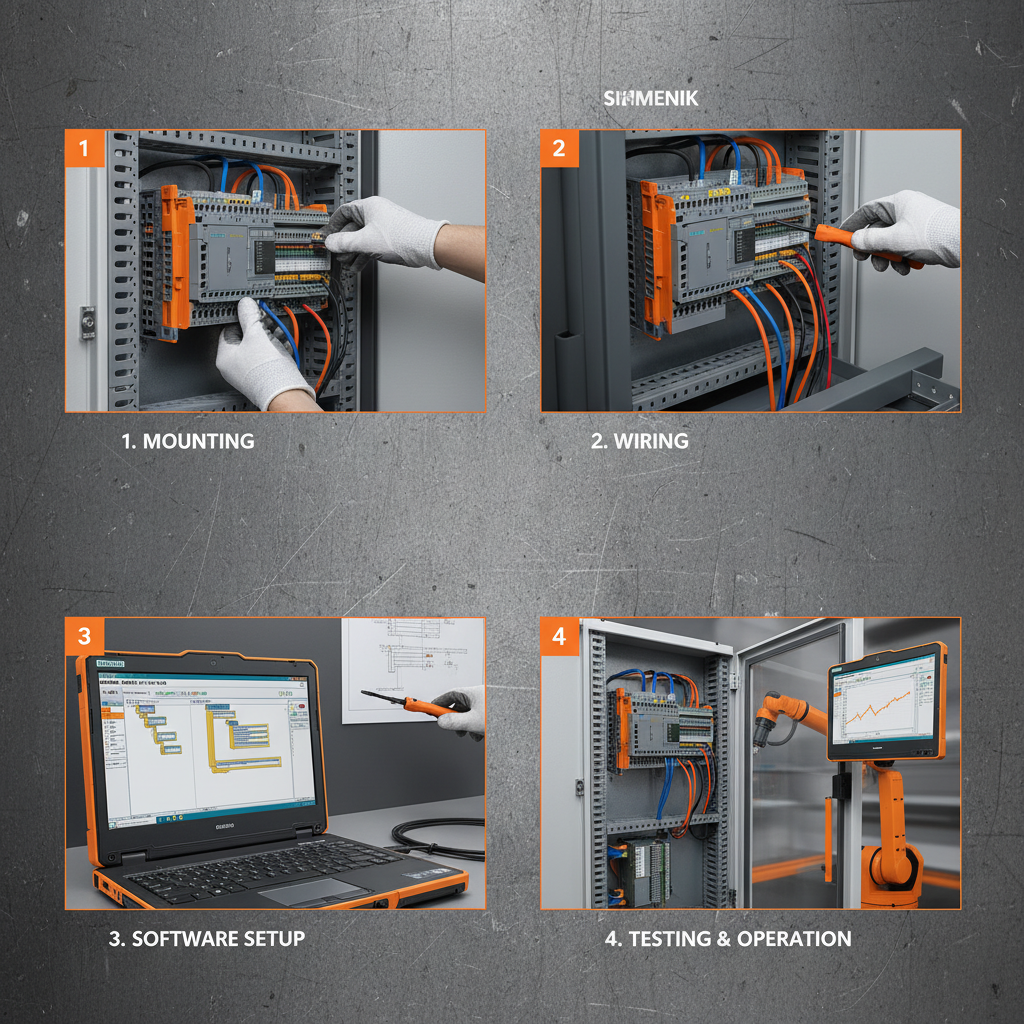
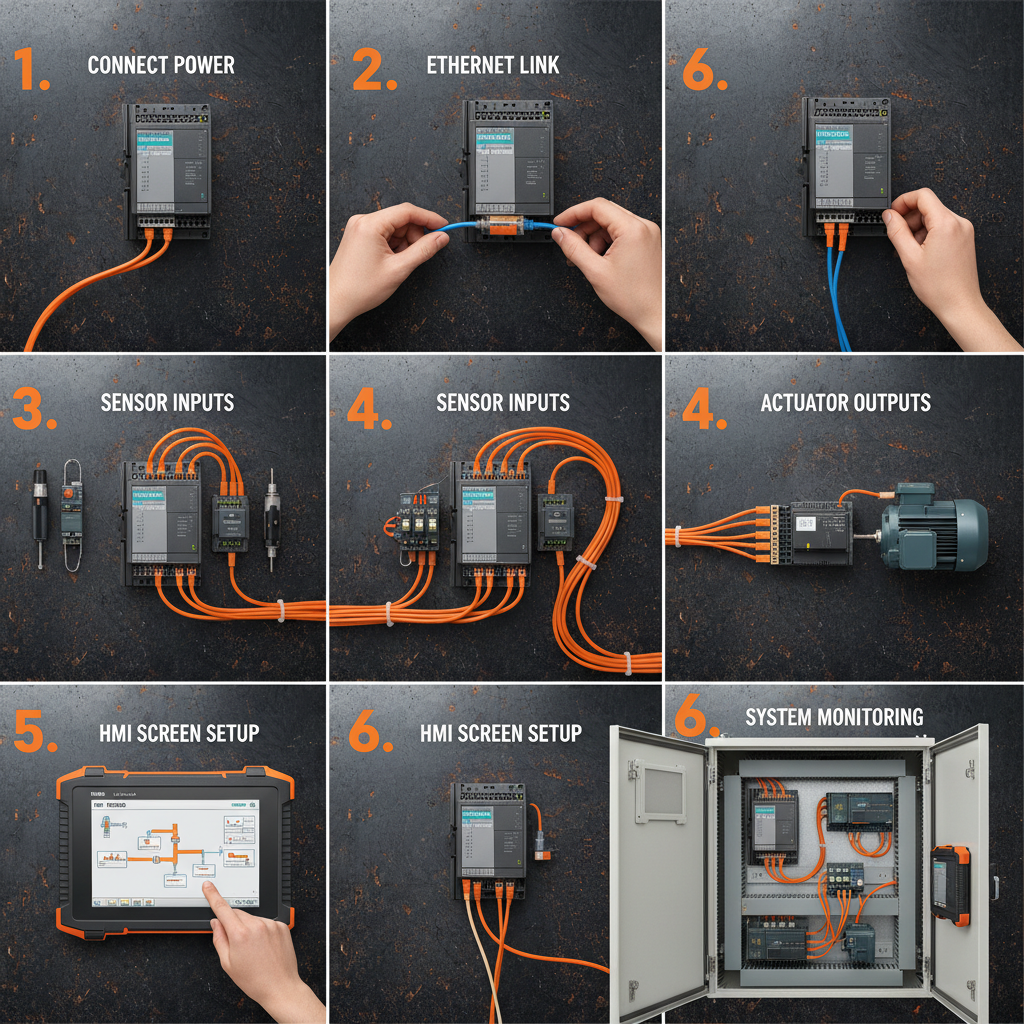
Installing the driver involves several steps. First, disconnect the adapter from your computer. Download the driver from the Tianjin Yongkai website or the official Siemens support portal. Run the downloaded executable file. Follow the on-screen instructions, accepting license agreements and choosing the installation directory. Connect the adapter after the installation is complete. Windows should automatically detect the adapter and install it. If not, you may need to manually point Windows to the driver files within the installation directory. Reboot your computer after installation.
Troubleshooting Common Driver Installation Issues
Several issues can arise during driver installation. One common problem is driver signature enforcement in Windows 7. You may need to temporarily disable driver signature enforcement to install the Siemens USB MPI adapter driver. Another issue is port conflicts with other devices. Check Device Manager to ensure the adapter is recognized and doesn't have a warning icon. If it does, try changing the COM port assigned to the adapter. Finally, ensure your Windows 7 installation is up-to-date with the latest service packs and updates.
Quick Troubleshooting Tips: Disable driver signature enforcement, check Device Manager for conflicts, update Windows, and manually assign a COM port.
Siemens USB MPI Adapter Driver Windows 7: Comparison with Newer Windows Versions
Driver installation is generally more straightforward on newer versions of Windows (8, 10, and 11) due to improved driver management and automatic update capabilities. Windows 7 requires more manual intervention and troubleshooting. The need to disable driver signature enforcement is a unique challenge with Windows 7. Newer operating systems often include built-in drivers or automatically download and install the necessary drivers upon connection. Here’s a comparison:
Where to Find the Latest Siemens USB MPI Adapter Driver
The most reliable source for the latest driver is the Tianjin Yongkai website. We provide regularly updated drivers to ensure compatibility with the latest Siemens PLCs and Windows 7 systems. Alternatively, you can visit the official Siemens support portal, but navigating their website can be challenging. Always download the driver from a trusted source to avoid malware or corrupted files. We recommend checking the driver version number and comparing it to the requirements of your PLC programming software (e.g., STEP 7).
Conclusion: Ensuring Reliable Siemens PLC Communication
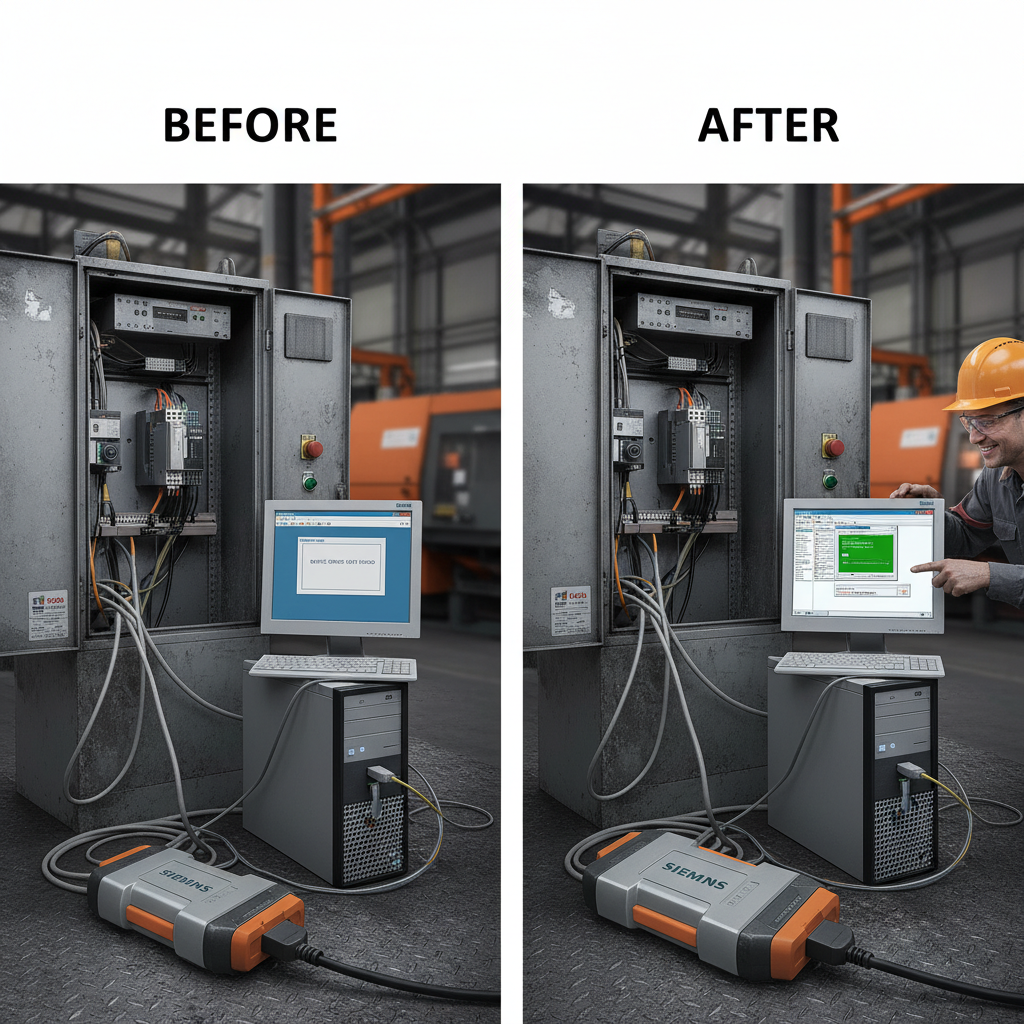
Successfully installing the Siemens USB MPI adapter driver on Windows 7 is crucial for maintaining seamless communication with your PLCs. By following the steps outlined in this guide and utilizing the resources available on the Tianjin Yongkai website, you can overcome common challenges and ensure reliable operation of your automation systems. Don't let driver issues disrupt your productivity – invest in a stable and efficient communication setup.
Frequently Asked Questions (FAQs)
What should I do if Windows 7 doesn’t recognize the Siemens USB MPI adapter?
First, ensure the driver is correctly installed. Open Device Manager (search for it in the Start Menu). Look for any unknown devices or devices with a yellow exclamation mark. If you find the adapter listed with an error, try uninstalling and reinstalling the driver. Also, verify that driver signature enforcement is disabled during the installation process. Restarting your computer after each attempt can also help. If the problem persists, try a different USB port or cable.
Is the Siemens USB MPI adapter compatible with 64-bit Windows 7?
Yes, the Siemens USB MPI adapter is generally compatible with both 32-bit and 64-bit versions of Windows 7. However, it's crucial to download and install the correct driver version for your specific operating system architecture. When downloading the driver from Tianjin Yongkai, ensure you select the 64-bit version if you are using a 64-bit version of Windows 7.
Can I use the Siemens USB MPI adapter with a USB hub?
While it may work with a USB hub, it’s generally not recommended. Direct connection to a USB port on your computer provides the most reliable communication. USB hubs can sometimes introduce latency or power supply issues that can disrupt communication with the PLC. If you must use a hub, ensure it's a powered USB hub with sufficient power output.
What does the ‘MPI’ protocol mean and why is it important?
MPI stands for Multi-Point Interface. It’s a communication protocol used by Siemens PLCs to connect and exchange data with multiple devices on a network. The Siemens USB MPI adapter enables your computer to participate in this MPI network, allowing you to program, monitor, and diagnose PLCs. Without the correct MPI communication, you won't be able to interact with the PLC effectively.